Friday, August 14, 2015

KNOW COMPUTER HARDWARE Part 5

Output device

 From Wikipedia, the free encyclopedia

 An output device is any piece of computer hardware equipment used to communicate the results of data processing carried out by an information processing system (such as a computer) which converts the electronically generated information into human-readable form.


Display devices

A display device is an output device that visually conveys text, graphics, and video information. Information shown on a display device is called soft copy because the information exists electronically and is displayed for a temporary period of time. Display devices include CRT monitors, LCD monitors and displays, gas plasma monitors, and televisions.[3]

Input/output

CPT Hardware-InputOutput
Inputs are the signals or data received by the system, and outputs are the signals or data sent from it.
There are many input and output devices such as multifunction printers and computer-based navigation systems that are used for specialised or unique applications.[1] In computing, input/output refers to the communication between an information processing system (such as a computer), and the outside world. Inputs are the signals or data received by the system, and outputs are the signals or data sent from it.

Types of output

Some types of output are text, graphics, tactile,[4] audio, and video. Text consists of characters (letters, numbers, punctuation marks, or any other symbol requiring one byte of computer storage space) that are used to create words, sentences, and paragraphs. Graphics are digital representations of nontext information such as drawings, charts, photographs, and animation (a series of still images in rapid sequence that gives the illusion of motion). Tactile output such as raised line drawings may be useful for some individuals who are blind. Audio is music, speech, or any other sound. Video consists of images played back at speeds to provide the appearance of full motion.[3]

Graphics (Visual)

Graphical output displayed on a screen.
A digital image is a numeric representation of an image stored on a computer. They don't have any physical size until they are displayed on a screen or printed on paper. Until that point, they are just a collection of numbers on the computer's hard drive that describe the individual elements of a picture and how they are arranged.[5] Some computers come with built-in graphics capability. Others need a device, called a graphics card or graphics adapter board, that has to be added.[6] Unless a computer has graphics capability built into the motherboard, that translation takes place on the graphics card.[7] Depending on whether the image resolution is fixed, it may be of vector or raster type. Without qualifications, the term "digital image" usually refers to raster images also called bitmap images. Raster images that are composed of pixels and is suited for photo-realistic images. Vector images which are composed of lines and co-ordinates rather than dots and is more suited to line art, graphs or fonts.[5] To make a 3-D image, the graphics card first creates a wire frame out of straight lines. Then, it rasterizes the image (fills in the remaining pixels). It also adds lighting, texture and color.[7]

Tactile

Haptic technology, or haptics, is a tactile feedback technology which takes advantage of the sense of touch by applying forces, vibrations, or motions to the user.[8] Several printers and wax jet printers have the capability of producing raised line drawings. There are also handheld devices that use an array of vibrating pins to present a tactile outline of the characters or text under the viewing window of the device.[4]

Audio

Speech output systems can be used to read screen text to computer users. Special software programs called screen readers attempt to identify and interpret what is being displayed on the screen[9] and speech synthesizers convert data to vocalized sounds or text.[6]

Smell

See Digital scent technology.

Examples

These examples of output devices also include input/output devices.[10][11] Printers and visual displays are the most common type of output device for interfacing to people, but voice is becoming increasingly available.[12]


KNOW COMPUTER HARDWARE Part 4

Input device

 n computing, an input device is a peripheral (piece of computer hardware equipment) used to provide data and control signals to an information processing system such as a computer or information appliance. Examples of input devices include keyboards, mice, scanners, digital cameras and joysticks.

Many input devices can be classified according to:
  • modality of input (e.g. mechanical motion, audio, visual, etc.)
  • whether the input is discrete (e.g. key presses) or continuous (e.g. a mouse's position, though digitized into a discrete quantity, is fast enough to be considered continuous)
  • the number of degrees of freedom involved (e.g. two-dimensional traditional mice, or three-dimensional navigators designed for CAD applications)
Pointing devices, which are input devices used to specify a position in space, can further be classified according to:
  • Whether the input is direct or indirect. With direct input, the input space coincides with the display space, i.e. pointing is done in the space where visual feedback or the pointer appears. Touchscreens and light pens involve direct input. Examples involving indirect input include the mouse and trackball.
  • Whether the positional information is absolute (e.g. on a touch screen) or relative (e.g. with a mouse that can be lifted and repositioned)
Direct input is almost necessarily absolute, but indirect input may be either absolute or relative.[clarification needed] For example, digitizing graphics tablets that do not have an embedded screen involve indirect input and sense absolute positions and are often run in an absolute input mode, but they may also be set up to simulate a relative input mode like that of a touchpad, where the stylus or puck can be lifted and repositioned.

Keyboards

Main article: Computer keyboard
A 'keyboard' is a human interface device which is represented as a layout of buttons. Each button, or key, can be used to either input a linguistic character to a computer, or to call upon a particular function of the computer. They act as the main text entry interface for most users. Traditional keyboards use spring-based buttons, though newer variations employ virtual keys, or even projected keyboards. It is typewriter like device composed of a matrix of switches.
Examples of types of keyboards include:

Pointing

Pointing devices are the most commonly used input devices today. A pointing device is any human interface device that allows a user to input spatial data to a computer. In the case of mice and touchpads, this is usually achieved by detecting movement across a physical surface. Analog devices, such as 3D mice, joysticks, or pointing sticks, function by reporting their angle of deflection. Movements of the pointing device are echoed on the screen by movements of the pointer, creating a simple, intuitive way to navigate a computer's graphical user interface (GUI).

High-degree of freedom input devices

Some devices allow many continuous degrees of freedom as input. These can be used as pointing devices, but are generally used in ways that don't involve pointing to a location in space, such as the control of a camera angle while in 3D applications. These kinds of devices are typically used in virtual reality systems (CAVEs), where input that registers six degrees of freedom is required.

Composite devices

Wii Remote with attached strap
Input devices, such as buttons and joysticks, can be combined on a single physical device that could be thought of as a composite device. Many gaming devices have controllers like this. Technically mice are composite devices, as they both track movement and provide buttons for clicking, but composite devices are generally considered to have more than two different forms of input.

Imaging and input devices

Microsoft Kinect sensor seen here on a TV, works by detecting human motion visually
Video input devices are used to digitize images or video from the outside world into the computer. The information can be stored in a multitude of formats depending on the user's requirement.
Medical Imaging

Audio input devices

Audio input devices are used to capture sound. In some cases, an audio output device can be used as an input device, in order to capture produced sound.

Punched Card devices

See Punched card input/output.

Other


 source:wikipedia


KNOW COMPUTER HARDWARE Part 3


Expansion cards

Main article: Expansion card
An expansion card in computing is a printed circuit board that can be inserted into an expansion slot of a computer motherboard or backplane to add functionality to a computer system via the expansion bus. Expansions cards can be used to obtain or expand on features not offered by the motherboard.

Storage devices

Main article: Computer data storage
Computer data storage, often called storage or memory, refers to computer components and recording media that retain digital data. Data storage is a core function and fundamental component of computers. The price of solid-state drives (SSD), which store data on flash memory, has dropped a lot in recent years, making them a better choice than ever to add to a computer to make booting up and accessing files faster.[8]
Fixed media
Data is stored by a computer using a variety of media. Hard disk drives are found in virtually all older computers, due to their high capacity and low cost, but solid-state drives are faster and more power efficient, although currently more expensive than hard drives, so are often found in more expensive computers. Some systems may use a disk array controller for greater performance or reliability.
Removable media
To transfer data between computers, a USB flash drive or Optical disc may be used. Their usefulness depends on being readable by other systems; the majority of machines have an optical disk drive, and virtually all have a USB port.

Input and output peripherals

Main article: Peripheral
Input and output devices are typically housed externally to the main computer chassis. The following are either standard or very common to many computer systems.
Input
Input devices allow the user to enter information into the system, or control its operation. Most personal computers have a mouse and keyboard, but laptop systems typically use a touchpad instead of a mouse. Other input devices include webcams, microphones, joysticks, and image scanners.
Output device
Output devices display information in a human readable form. Such devices could include printers, speakers, monitors or a Braille embosser.

Wednesday, August 5, 2015

KNOW COMPUTER HARDWARE Part 2.

Case

Main article: Computer case
The computer case is a plastic or metal enclosure that houses most of the components. Those found on desktop computers are usually small enough to fit under a desk, however in recent years more compact designs have become more common place, such as the all-in-one style designs from Apple, namely the iMac. Though a case can basically be big or small, what matters more is which form factor of motherboard it’s designed for.[6] Laptops are computers that usually come in a clamshell form factor, again however in more recent years deviations from this form factor have started to emerge such as laptops that have a detachable screen that become tablet computers in their own right.

Power supply

A power supply unit (PSU) converts alternating current (AC) electric power to low-voltage DC power for the internal components of the computer. Laptops are capable of running from a built-in battery, normally for a period of hours.[7]

Motherboard

Main article: Motherboard
The motherboard is the main component of a computer. It is a large rectangular board with integrated circuitry that connects the other parts of the computer including the CPU, the RAM, the disk drives(CD, DVD, hard disk, or any others) as well as any peripherals connected via the ports or the expansion slots.
Components directly attached to or part of the motherboard include:

  • The CPU (Central Processing Unit) performs most of the calculations which enable a computer to function, and is sometimes referred to as the "brain" of the computer. It is usually cooled by a heat sink and fan. Most newer CPUs include an on-die Graphics Processing Unit (GPU).
  • The Chipset, which includes the north bridge, mediates communication between the CPU and the other components of the system, including main memory.
  • The Random-Access Memory (RAM) stores the code and data that are being actively accessed by the CPU.
  • The Read-Only Memory (ROM) stores the BIOS that runs when the computer is powered on or otherwise begins execution, a process known as Bootstrapping, or "booting" or "booting up". The BIOS (Basic Input Output System) includes boot firmware and power management firmware. Newer motherboards use Unified Extensible Firmware Interface (UEFI) instead of BIOS.
  • Buses connect the CPU to various internal components and to expand cards for graphics and sound.
  • The CMOS battery is also attached to the motherboard. This battery is the same as a watch battery or a battery for a remote to a car's central locking system. Most batteries are CR2032, which powers the memory for date and time in the BIOS chip.


KNOW COMPUTER HARDWARE Part 1.

Computer hardware (usually simply called hardware when a computing context is implicit) is the collection of physical elements that constitutes a computer system. Computer hardware is the physical parts or components of a computer, such as the monitor, mouse, keyboard, computer data storage, hard disk drive (HDD), system unit (graphic cards, sound cards, memory, motherboard and chips), and so on, all of which are physical objects that can be touched (that is, they are tangible).[1] In contrast, software is instructions that can be stored and run by hardware.

Saturday, July 25, 2015

APPLE MAINTANANCE

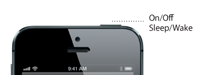
Apple has determined that the sleep/wake button mechanism on a small percentage of iPhone 5 models may stop working or work intermittently.  iPhone 5 models manufactured through March
2013 may be affected by this issue.
Apple will replace the sleep/wake button mechanism, free of charge, on iPhone 5 models that exhibit this issue and have a qualifying serial number.
The sleep/wake button is located on the top of your iPhone 5: iPhone 5 sleep/wake button detail

Eligibility

If your sleep/wake button isn’t working properly, please enter your iPhone 5 serial number below to see if it qualifies for this program.
Please see the Replacement Process section for next steps.
  Finding your iPhone serial number is easy. See how.

Note: If your iPhone 5 sleep/wake button does not show any signs of this issue and/or does not have a qualifying serial number, no action is required on your part at this time.

Replacement Process

Replacement of the sleep/wake button mechanism is done at an Apple Repair Center. There are two ways to send your iPhone to the repair center—carry-in or mail-in. See below for details. The replacement process takes approximately 4-6 days from the time your iPhone is received at the repair center until it is returned to you. Your iPhone will be examined prior to any service to verify that it is eligible for this program and is otherwise in working order. Before sending your iPhone to Apple for service, you will need to back up all your data and erase all your content and settings.
Note: If your iPhone 5 has any damage such as a cracked screen which impairs the replacement of the sleep/wake button, that issue will need to be resolved prior to the sleep/wake button replacement. In some cases, there may be a cost associated with the repair.

How to send your iPhone 5 to an Apple Repair Center

  • Carry-in
    • Bring your iPhone 5 to a participating provider - Apple Retail Store or Apple Authorized Service Provider.
    • Your iPhone will be examined to verify eligibility, and then sent to the local Apple Repair Center.
    • You will be notified when your iPhone is ready for pickup.

    If you require a loaner during the time that your iPhone is being serviced, participating Apple Retail Stores and Apple Authorized Service Providers will have iPhone 5 models (16GB only) available.

    Note: To use the carry-in option, you must visit an Apple Retail Store or participating Apple Authorized Service Provider and not a wireless carrier partner.
  • Mail-in
    • Call Apple and request a postage paid box to send your iPhone in to the local Apple Repair Center.
    • Your iPhone will be examined by the Repair Center to verify eligibility.
    • After it has been serviced, your iPhone will be returned to you by mail.

Preparing your iPhone 5 for service

Make sure your iPhone is ready for service by completing the following steps:
  • Back up your data to iTunes or iCloud
  • Turn off Find my iPhone
  • Erase data and settings in Settings > General > Reset > Erase all Content and Settings
  • Remove any case or cover

Note: If you are running iOS 6 or iOS 7, your iPhone will need to be upgraded to iOS 8 after the sleep/wake button mechanism is replaced.

Additional Information

Apple may restrict or limit repair to the original country of purchase.
Your iPhone 5 must be in working order to qualify for this program.
If you believe you have paid for a replacement due to this issue, contact Apple regarding a refund.
This worldwide Apple program does not extend the standard warranty coverage of the iPhone.
The program covers iPhone 5 models for 3 years after the first retail sale of the unit.
Information as of 2015-03-05


Sunday, July 19, 2015

Electronics Training for hobbyist

Hapa ni worshop ya laptop hizo ambazo wazungu wameziunda
Baadhi ya wateja wakiwa katika mazungumzo na mafundi wetu